DHR 4901 PVR Support
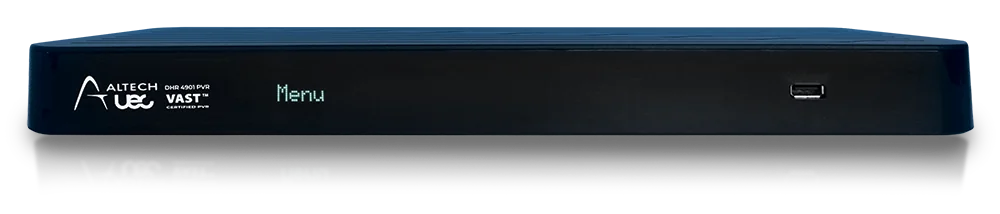
DHR4901PVR Support Videos
DHR 4901 PVR Frequently Asked Questions
DHR 4901 PVR is Not Turning On
If you are unable to get the unit to power up. Check your external power supply to see if there is a green light displayed on the power supply itself. If there is no green light, the power supply is faulty and you will require a replacement. If there is a green light and no lights on the DHR4901PRV, there may be an internal fault. Please contact NAS Australia UEC Support on 07 3015 8790 or email uecsupport@nasaustralia.com.aufor further assistance.
'No Signal' on the TV Screen
Make sure your TV is on the correct input channel to view the DHR4901PRV (HDMI).
Recording Start Lead-Time & Recording End Delay
If you are finding that your scheduled recordings are recording for a significant time after the scheduled program is set to finish in the EPG, check your ‘Recording Start Lead-Time’ and your ‘Recording End Delay’.
Menu> settings> User Preferences> Recording> Recording Start Lead-Time or Recording End Delay.
You will be able to change those actions from anywhere between 5mins-30mins.
The ‘Recording Start Lead-Time’ is the time that the unit will start recording your scheduled recording before the program is supposed to start. For example if your ‘Recording Start Lead Time’ is set to 5mins, your DHR4901PRV will start recording 5mins before the program is scheduled to start. It is the same with the ‘Recording End Delay’.
You have installed your DHR 4901 PVR and it is searching for signal (Signal Too Weak or Signal Not Found or No Signal - Frequency 12567Mhz). What do you do now?
Signal too weak or not found or No Signal - Frequency 12567 Mhz
This indicates that your decoder is not receiving any signal. This may be due to bad weather or a faulty connection in the installation. Please also confirm that your satellite dish is pointing to the OPTUS C1 Satellite at 156 degrees east.
NOTE: This is not an issue with your smart card.
You may need to re-point your satellite dish. Please visit https://www.dishpointer.com for help aligning your satellite dish. Should you require any further assistance, do not hesitate to call NAS Australia UEC Support on 07 3015 8790 or email uecsupport@nasaustralia.com.au.
I have not used my DHR 4901 PVR for some time (E19-4 or E30-4 Subscription Status Expired)
This is a common error for travelers and remote viewers who's system has already been activated and working but have not used their VAST decoder for some time. This arises due to the security information contained on the smart card expiring. There are two options to recover from this error.
- Leave the decoder turned on and the information on the smart card will updated to restore all of the activated services. The decoder usually recovers within a couple of hours.
- Reactivate the smart card by entering the smart card details hereor by calling the VAST call center on 1300 993 376.
What does the 'E006-4 Smartcard Failure or E004-4 Please insert Smart Card' error messages mean?
Displayed if an invalid smart card is inserted, if the card is incorrectly inserted or not inserted and if the smart card contacts are dirty. Ensure the card is inserted with the contacts towards the Set top box and on the underside. 'Clean the gold contacts on the card with Methylated spirits and then re-insert the card and press reset on the front of the satellite box. If this does not resolve the fault then your set top box will require repair at a local service agent.' Please contact NAS Australia UEC Support on 07 3015 8790 or email uecsupport@nasaustralia.com.au.
What does 'E107-4 The Smart Card is not fully authorised' mean?
If you have previously had access to the VAST services but have either lost all the services due to an unknown fault or because your decoder was not powered up at the time of registration please visit here for a decoder re-hit.
The re-hit process provides the latest security key to your smart card which allows you to view the channels that you have been registered for.
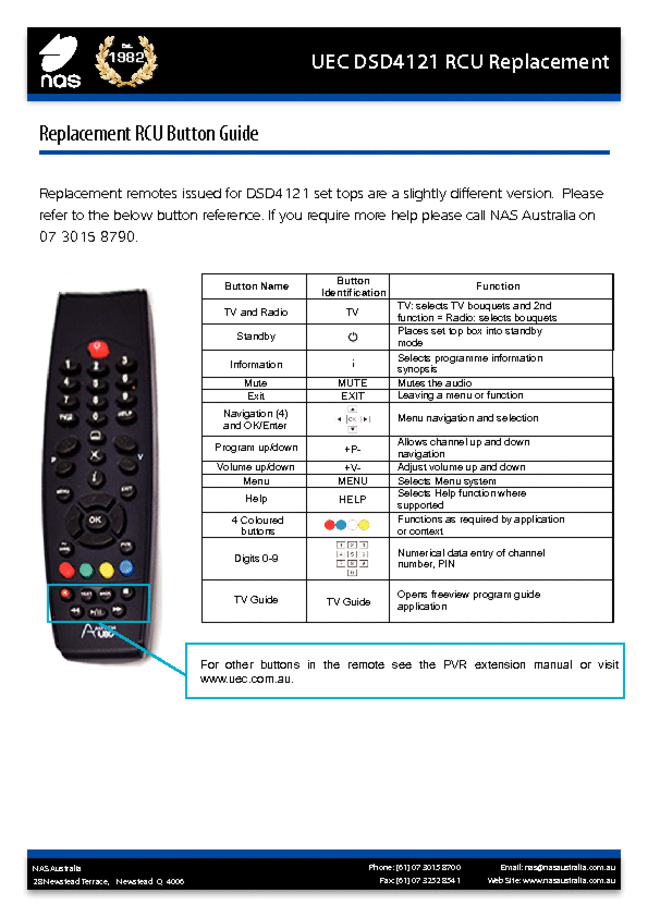
Why can't I control the volume with my DHR 4901 PVR remote control
If you are unable to control the volume of your DHR4901PVR with your remote control you will have to change the HDMI audio setting from Auto to PCM. Please press Menu> settings> User Preferences> Audio> HDMI Digital Audio Output and then change the audio setting from auto to PCM.